

Start a session and pick its folders
- Press New session.
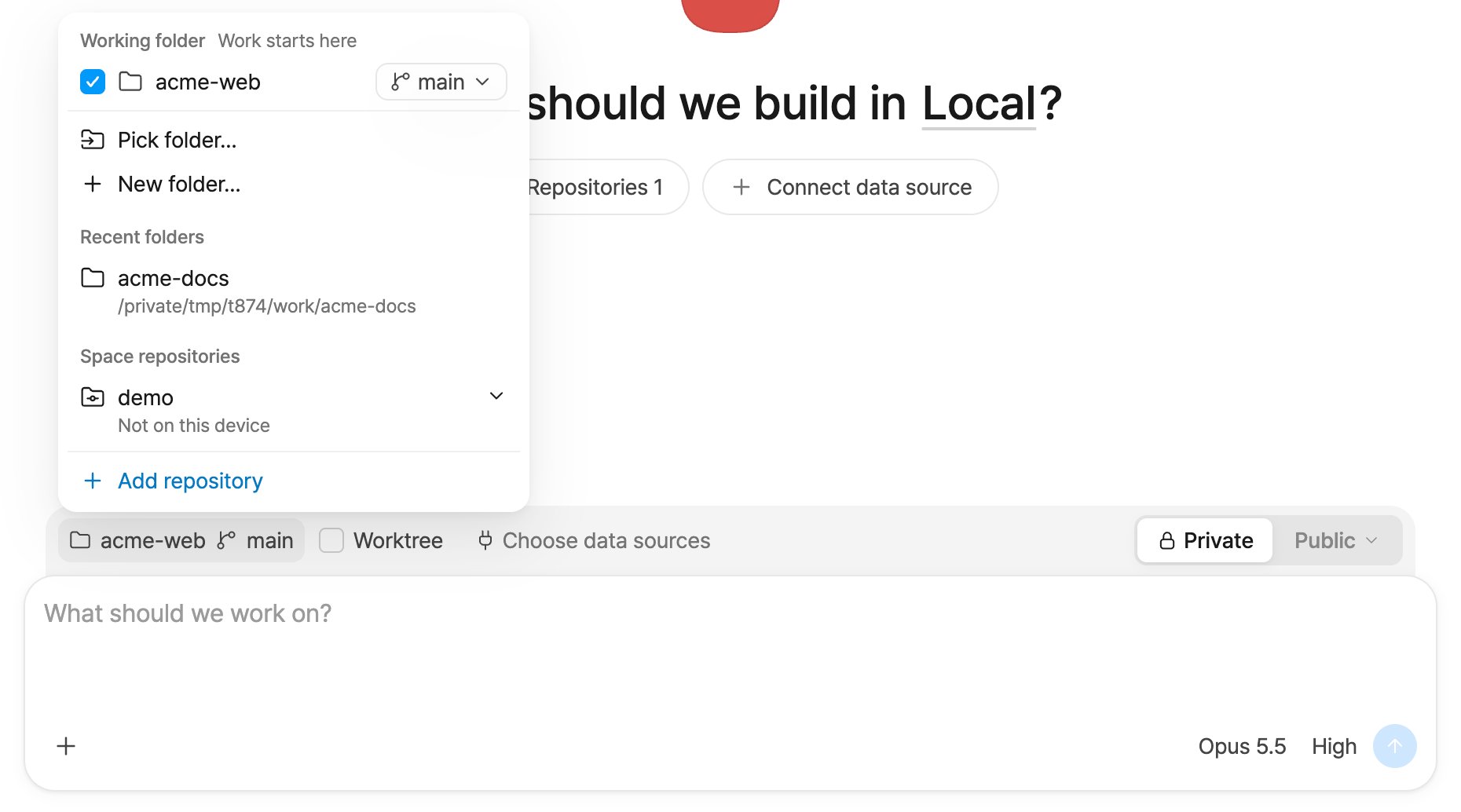
- Before the first message, open the folder chip (Choose working folder) and pick a folder:
- Pick folder… or New folder… — a folder on this computer.
- Recent folders.
- Space repositories — the repositories registered in this space. If one isn’t on this computer yet, it shows Not on this device. Choose Pick a copy on this device… to use a copy you already have, or Download to… to download it.
- Add repository registers another GitHub repository in the space.
- The first folder you pick is the Working folder (“Work starts here”). Folders you pick after it are Extra folders (“Open and edit alongside”). For a git folder you can choose the Start branch.
- If you pick a folder inside a git repository, the session uses the repository’s top folder.
- If you pick your whole home folder, Bottari warns you: the AI can read and change everything in it.
- A session can hold one copy of a repository.
- If the folder isn’t on GitHub, the session starts private. You can widen it from Share later.
Work in an isolated copy (Worktree)
On the new-session screen, the Worktree chip chooses where the session works:- Off — Work right in my folder.
- On — Work in a copy of the working folder just for this session.
bottari/<name>-…). Extra folders stay where they are. The chip isn’t offered for a folder that isn’t a git repository, a repository with no commits, or a worktree you made yourself.
Folders belong to the session
Each session has its own folder list. A sub-session inherits its session’s folders. Two sessions that both work right in the same folder (Worktree off) share the files in it.Change folders after the session starts
The working folder can’t be changed or removed after the session starts, and moving to another folder in the shell (for example withcd) doesn’t change it. To work in a different folder or checkout, start a new session on it, or add it to this session as an extra folder. If the checkout you need is already in the session (for example a worktree on another branch added as an extra folder), use it as it is; you don’t need to switch branches or move checkouts around to fit the working folder.
Open the session rail (Open session rail) and use the Environment card. The top row is the working folder, the rows below it are additional folders, and the last row is the branch. The rows show the folder and branch names, not words like “Working folder”; hover a row to see Working folder, Additional folder or Branch.
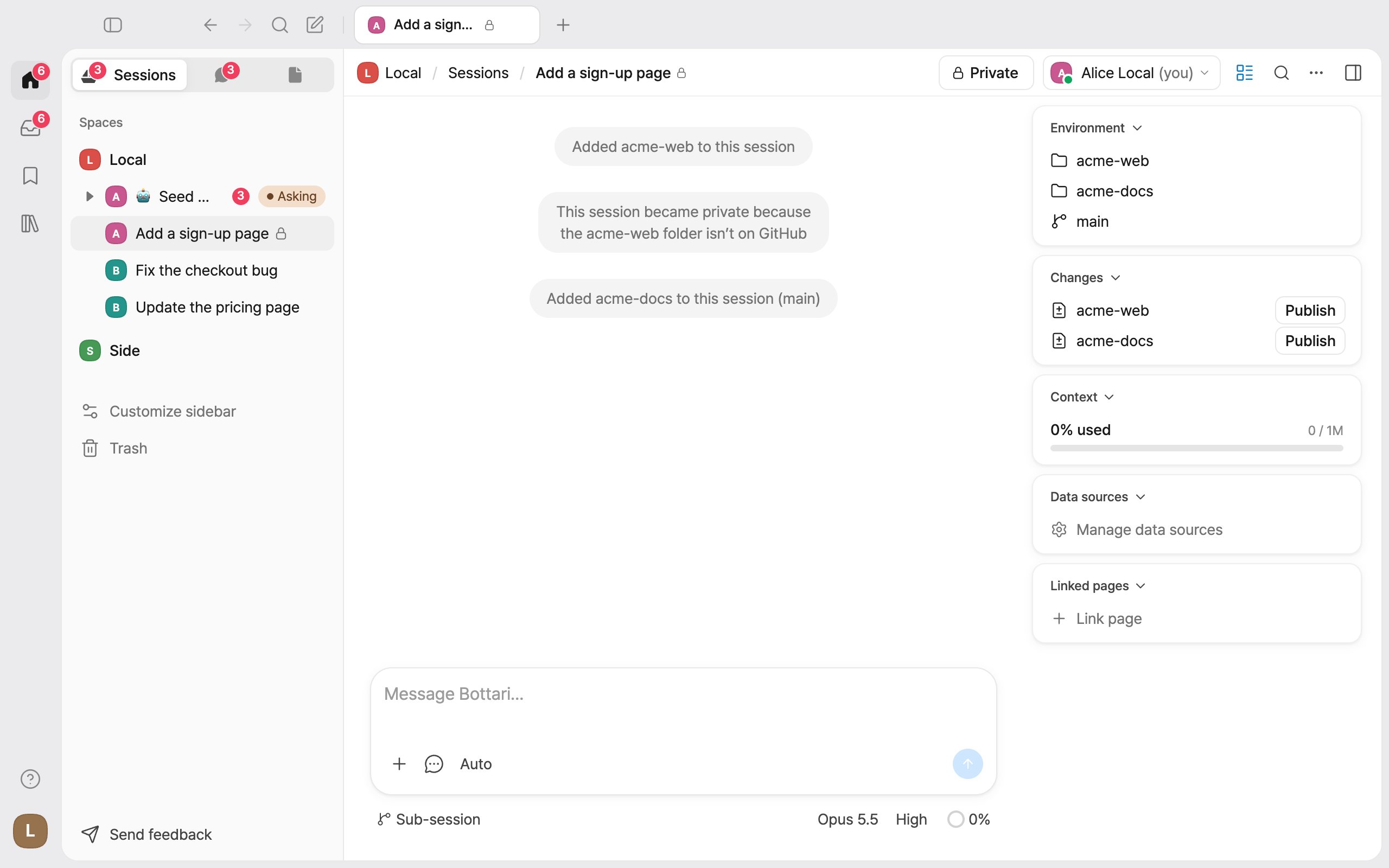
- Click the working folder row (the top folder name) and choose Add folder to add an extra folder. It’s available from the next turn. You need edit access. A folder that isn’t on GitHub can only be added on the runner device.
- Remove from session (extra folders only) takes the folder out from the next turn. The repository stays registered in the space, and the folder on your computer is left as it is. You need full access, and you can’t remove a folder while a turn is running.
- In the Branch row, Move to a worktree… moves the session into an isolated copy branched from the current HEAD. Uncommitted changes stay in the current folder. Leave the worktree… takes the session back to the repository folder; you choose Keep worktree or Remove worktree. Both take effect from the next turn, and only the runner device can do them.
Runner device and assignee
A session runs on its assignee’s computer. If someone else is the assignee, you see This Session belongs to someone else; press Take over to become the assignee and run it on your computer. Changing a session’s assignee needs full access (edit access is enough for a sub-session). If the session’s repository exists only on the computer that created it, you see Can’t take it over yet: push the repository to GitHub from that computer first. If the session runs on another computer of yours and that computer is offline, you can choose Continue here to run it on this computer.Share a session
Press Share and choose an access level for each person: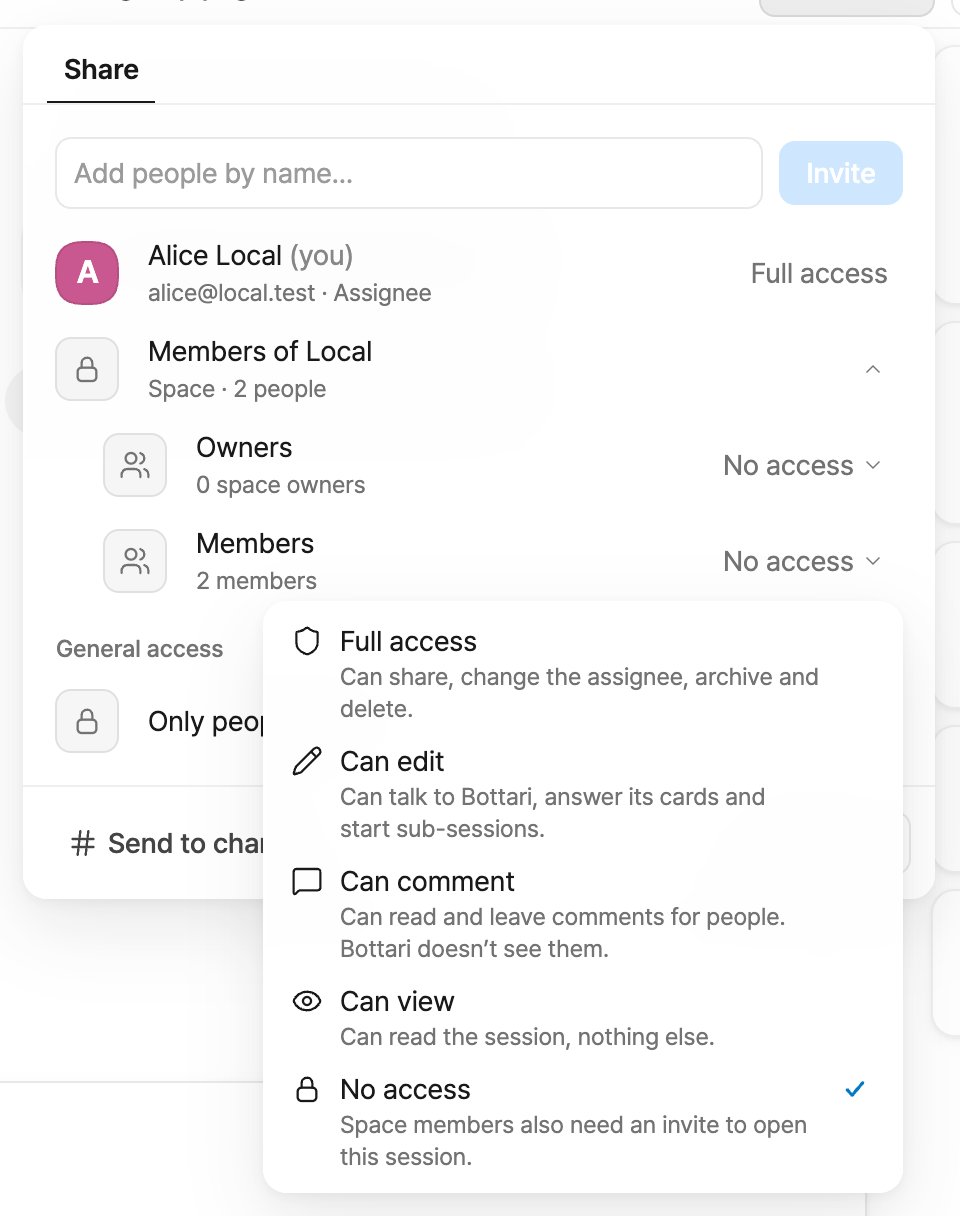
Editors send instructions to Bottari here. Bottari runs on the runner’s device: like a terminal, it can read files outside the session folder there, and through that device it can also reach team data the runner can open. Those reads are recorded in the team audit log. It also uses the runner’s Claude memory, so editors’ instructions can read it and save to it.
Talk to Bottari or comment
In a session, “Bottari” means the Claude Code running the session — see Bottari and Claude Code. The Comment toggle next to + (⌘⇧C) switches the composer between messages to Bottari and comments for people. With comments on, the message is not sent to Bottari. People with comment access always write comments.Mentions
Type @ in a session to mention a teammate, a page, a database or a session. Editors can also mention files in the session’s folders. A message that mentions a person goes to teammates as a comment, and the agent doesn’t respond to it. @Bottari isn’t offered in sessions. In channels, @Bottari is a separate assistant that runs on Bottari’s server; on pages, the same assistant opens with Edit this page with Bottari — see Bottari and Claude Code.Slash commands
Slash commands go to Claude Code as they do in the terminal, except:Shell mode
Type! in an empty composer to switch to shell mode (Shell). The command runs on the session’s runner device. To leave, press × on the chip (Leave shell mode) or Esc. Shell commands can’t carry attachments and can be up to 8,000 characters.
Modes and permission cards
The mode menu (Change mode) has:
If the runner’s Claude settings or model don’t allow the selected mode, the session runs in another mode and the mode tip says so.
When Claude needs permission, a card asks, for example, Allow Bottari to run this command? You can Allow or Deny. Depending on the request, the card can also offer choices such as Don’t ask again in this session or Allow and switch to auto mode. Only someone with edit access can answer.
Folder trust
The first time Claude Code works in a folder on your computer, Bottari asks Trust the … folder? — if you trust it, Claude Code can read, edit, and run files in this folder. Choose Trust and start or Don’t trust. You aren’t asked if you already trusted the folder in Claude Code in the terminal, and you’re asked again when the Claude Code files in that folder change (such as settings, hooks,CLAUDE.md, .mcp.json or skills).
Bottari manual 13 pages (#940)