

Open settings
- Desktop: click your team’s picture at the bottom of the left rail, then choose Settings. Sign out is in the same menu.
- Phone: tap your picture at the top of the Home tab.
Desktop settings menu
Profile
Settings › Account › Profile- Change photo, Name.
- Profile card: Title, Status, Time zone.
- Preferences: Language (System, English, 한국어), Theme, Animated emoji, One-click reactions, Include my view history (pages and databases).
Can I change my email?
No. Your email is shown under Account on the Profile page, but it can’t be edited. It comes from the first sign-in that gave Bottari an email address, and later sign-ins don’t replace it. If you sign in with Google or GitHub and the provider gives the same verified email, you land in the same account.Delete your account
Settings › Account › Profile, at the bottom under Account: Delete account. Type your email to confirm. Your name, email, photo, devices, settings, and the pages and channels only you could see are deleted. Messages and documents you shared in teams stay, and only the author changes to “Deleted account”. This can’t be undone. Teams where you’re the only member are deleted too: the dialog lists them under Teams to be deleted, and they’re permanently deleted within 30 days. If you’re the only owner of a team that has other members, ownership passes to the member who joined earliest. On the phone: Settings › Account › Delete account. Log out is in the same group.Plan and limits
Settings › Team › Plan shows your team’s plan (Free, Pro or Enterprise) and its usage.- On Free, a team has limits on the number of sessions it has created, document blocks, the size of each uploaded file, and guests. When the team goes over a limit, the plan page counts down the days left; after that, creating stops (Over the limit, so creating has stopped.).
- Free teams can’t make private spaces, and @Bottari in channels and pages doesn’t answer there.
- On Pro and Enterprise these limits are lifted. @Bottari in channels and pages uses a monthly AI budget per member.
- The audit log can be read on Enterprise only.
- Sessions themselves run on your own Claude Code and Claude subscription, so the plan doesn’t limit how much Claude you use in a session.
Connections
Settings › Account › ConnectionsConnect GitHub — three steps
GitHub connects in three separate places. You need the first for pushing code and opening PRs from a computer, the second to work on a repository in a space, and the third only to read an organization’s issues and PRs or to use the agent database there.- Sign in on this computer: Settings › Account › Connections › Connect. Bottari signs you in through the GitHub CLI (
gh) and asks you to install it if it’s missing. Each computer you use needs this once. - Register repositories in a space: on the space’s home, press Add repository and pick repositories (the same button is on a session’s Environment card). Registering doesn’t download anything; a repository is downloaded to a computer the first time a session there works in it.
- Install the Bottari GitHub app on an organization: if the space home shows “The Bottari GitHub app isn’t installed on this organization, so issues and PRs can’t be read from its repos here (…).”, press Install GitHub app. Only an owner of that GitHub organization can install it; for anyone else the button sends a request to the owners. Until it’s installed, Bottari can’t read that organization’s issues and PRs, and an agent database on its repositories can’t start.
GitHub sign-in on this computer
- Connect signs you in to GitHub through the GitHub CLI (
gh). Ifghisn’t installed, you see Install GitHub CLI. - If
ghis signed in to more than one account, Use another account lets you switch. - Disconnect asks Disconnect GitHub? Bottari stops using your GitHub sign-in on this computer. Your
ghlogin itself stays. Until you connect again, you can’t push code or open PRs from Bottari on this computer, and the agent database can’t run here.
Devices
The Devices section lists the devices you’ve used Bottari on. The computer you’re on comes first, marked (this device). The others show when they were last seen.Notifications
Settings › Account › Notifications- Desktop: Desktop notifications.
- Do not disturb: Pause notifications and Quiet hours.
- Messages from other sessions: what happens when another session’s agent messages a session you own.
This device
Settings › Dev environment › This device checks this computer’s tools and permissions (Tools, Permissions, Automatic setup) and has Session folders › Where new folders go.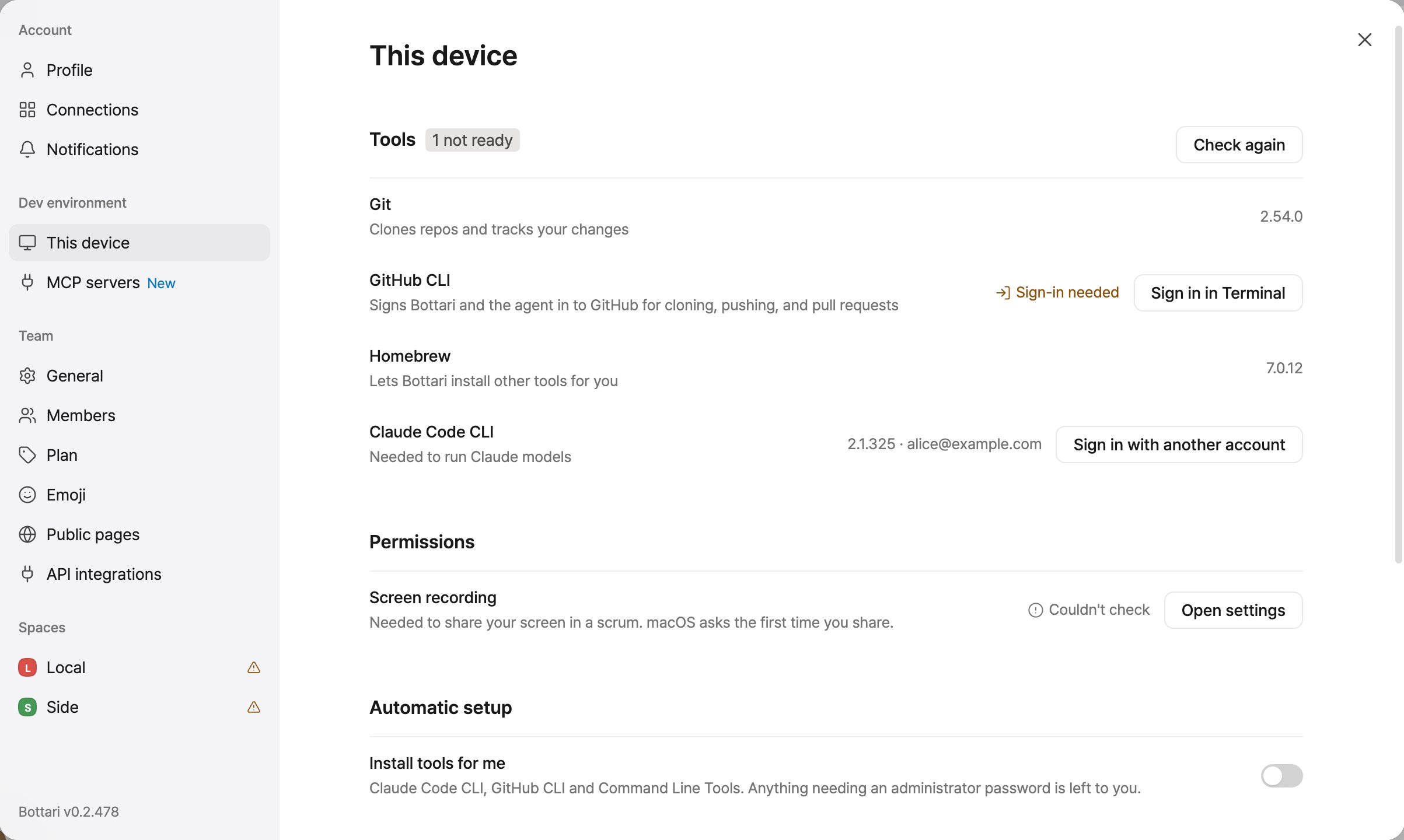
Supported platforms
Bottari manual 13 pages (#940)